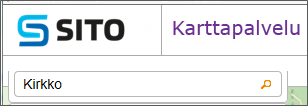
The minimum number of characteristics in the search field is three.
Click Magnifying Glass or hit the enter key to view the search results.
Other optional search terms can be facility, district, service, building name or property identifier.
Searching objects in the service. Search is located in the top left corner. The set of available materials and functions are different for different users.t skillnader mellan olika tjänster och användarprofiler.
Searches look for object names by the search entry given. Write the object name or the beginning of the name. While typing, results suggestions that best correspond to your search term are listed below the search field.
The minimum number of characteristics in the search field is three.
Click Magnifying Glass or hit the enter key to view the search results.
Other optional search terms can be facility, district, service, building name or property identifier.
Select a search class from listbox.

Select a method to limit the search area:
Search results open as a list on the left side of the browser window. Results are listed categories in which each result belongs to. Search results are shown in the map window.
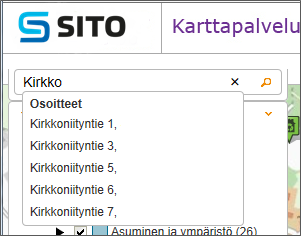
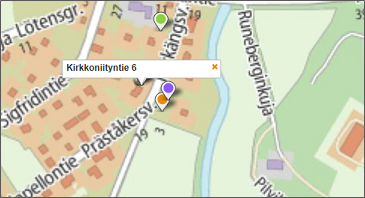
By clicking a search result name, map view is automatically centered to the area of the result in question.
The location of the object on map is shown in the middle of the map window. If there are several objects in the same location, you can choose the wanted object from listbox.
When clicking the table- symbol after search results, you get data view of the search results
When you click ”Show” on the data view, the location of the object on map is shown in the middle of the map window. Export search result to Excel by clicking “Export to Excel”.